Saturday, 8 October 2011

Making the skull

To make the back of the head a sphere was made and aligned to the reference images. It was then scaled to fit the reference images in both directions.


To get a consistent flow of geometry the number of segments was matched up with the existing geometry of the forehead. The sphere was then converted into an editable polygon so that it could be edited. The ploygons around the front of the face were removed and so were the ones around the ear so that they could be modelled at a later stage.


As the back of the head would eventually be attached to the front of the face, half of the sphere had to be removed.


The vertices were then aligned using snap toggle and the back of the head was attached to the face creating one editable shape.


Wednesday, 5 October 2011

Defining detail for the lips

To make the lip, the edges were selected around the mouth opening and whilst holding shift the edges were copied. Switching to the vertices tool each vertex was aligned to the shape on the reference images. To give the lips some depth the edges were copied again and pulled back into the mouth twice and scaled down with the scale tool. The edges were then copied down on the bottom lip and up on the top. Wield was used to ensure that all the vertices were joined around the inner edge of the lip.


The detail on the lips looks more realistic after turbosmooth has been switch on.

Defining the detail on the nose

Using the cut tool while vertices are selected enables you to divide a polygon into more edges. This enables you to add more detail where it is needed. It was used to add more definition around the nostril.


By selecting the edges around the nostril and holding shift and dragging up the Z axis a copy of the edges were made. This created the nostril cavity. The scale tool was used in the same way.

The cut tool was used to make sure there were only four sided polygons making up the nostril, as when the turbo smooth was applied the odd shapes create pinches on the model.


Nose cavity once turbo smooth has been applied.

Monday, 3 October 2011

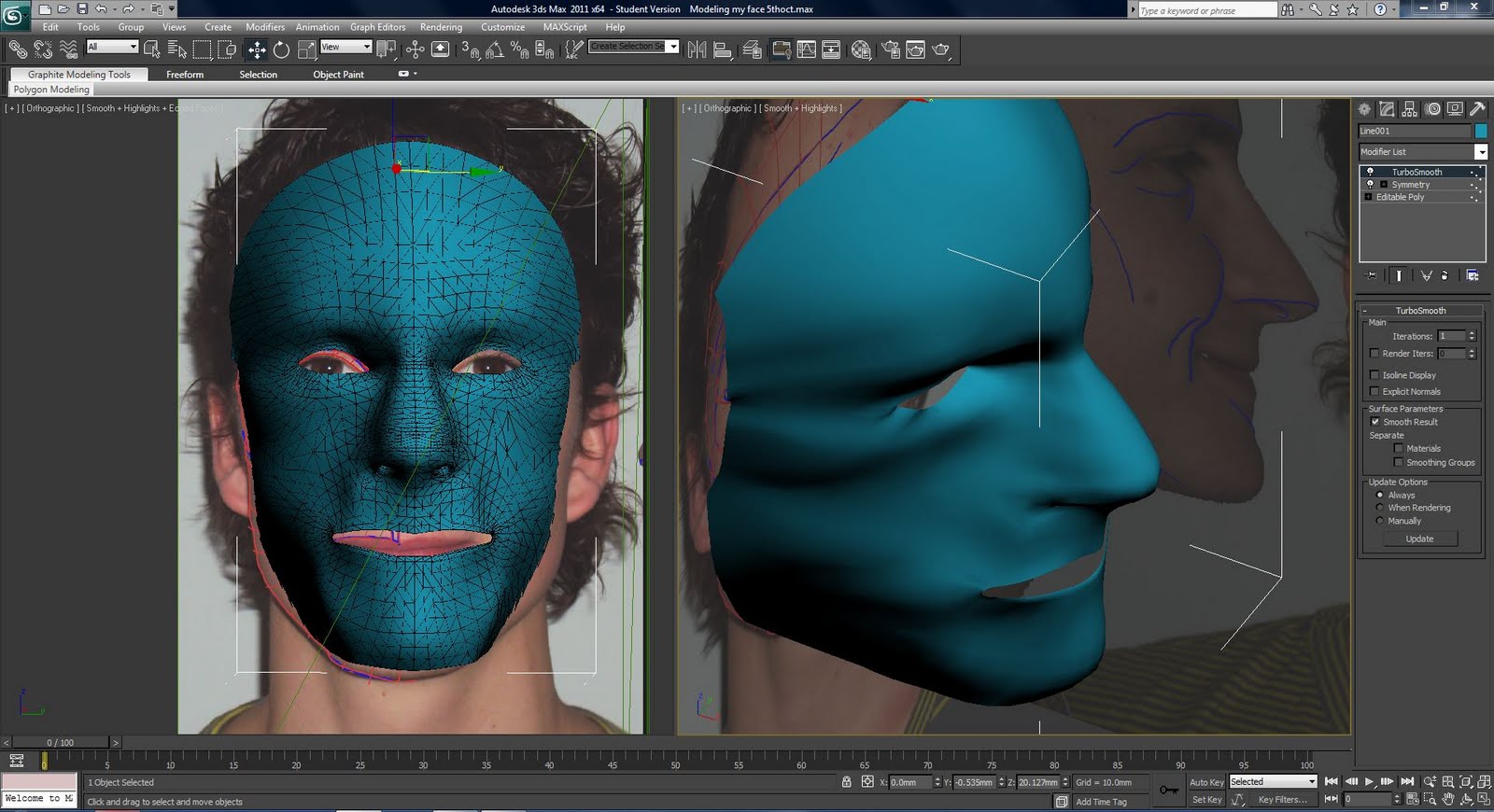
Using Symmetry, NURMS Subdivision and Turbosmooth

After all the Vertices had been moved for one side of the face a simple symmetry modifier was used to mirror the left side of the face. The x axis was selected as the mirror point and it was moved along the axis to line up with the reference image.

Use NURMS Subdivision was selected under Subdivision surface to add detail to the face which smoothed it. This created a sharp edge all around the symmetry line of the face though.


To get round the sharp edge that Subdivision NURMS created it was turned off and a turbo smooth modifier was added, making sure it was before Symmetry and editable polygon in the modifier list.


Converting the flat image into 3D

The vertices were dragged across the Z axis to the side reference image. This step was repeated for each vertex.


Extra vertices were added where more detail was needed and where mistakes had been made.


The vertices were constantly tweaked to try and resemble the shape and contours of the face.

Using splines to model the head

Once the reference planes were ready the line tool was used to draw around the topology. The spline tool was set to corner. Each segment (four sided line drawn in Photoshop) was drawn around making sure that each line was closed. One of the four sided lines was selected and then converted into an editable polygon by clicking the right mouse button.


The polygon was selected and then all the other lines were attached to it using the attach tool. All the vertices were selected and then the weld tool was used to connect all the duplicated vertices.


Setting up 3D reference planes

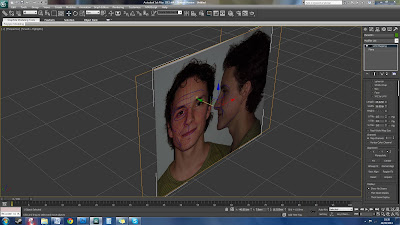
The first step in 3Ds Max was to create a plane, made up of only one segment. This was then used to make a material consisting of the reference images made in Photoshop.


To make the Image (bitmap) fit the plane without any distortion Uvw mapping was used, by clicking on the (+) box the image on the plane could be moved to the desired position.


To make the second reference plane the original was just copied using shift + dragging the plane. It was then just a case of rotating the plane to face the right way. Using Uvw mapping the image could be moved and the plane was resized to show the correct side of the face.